One terminal for the whole herd
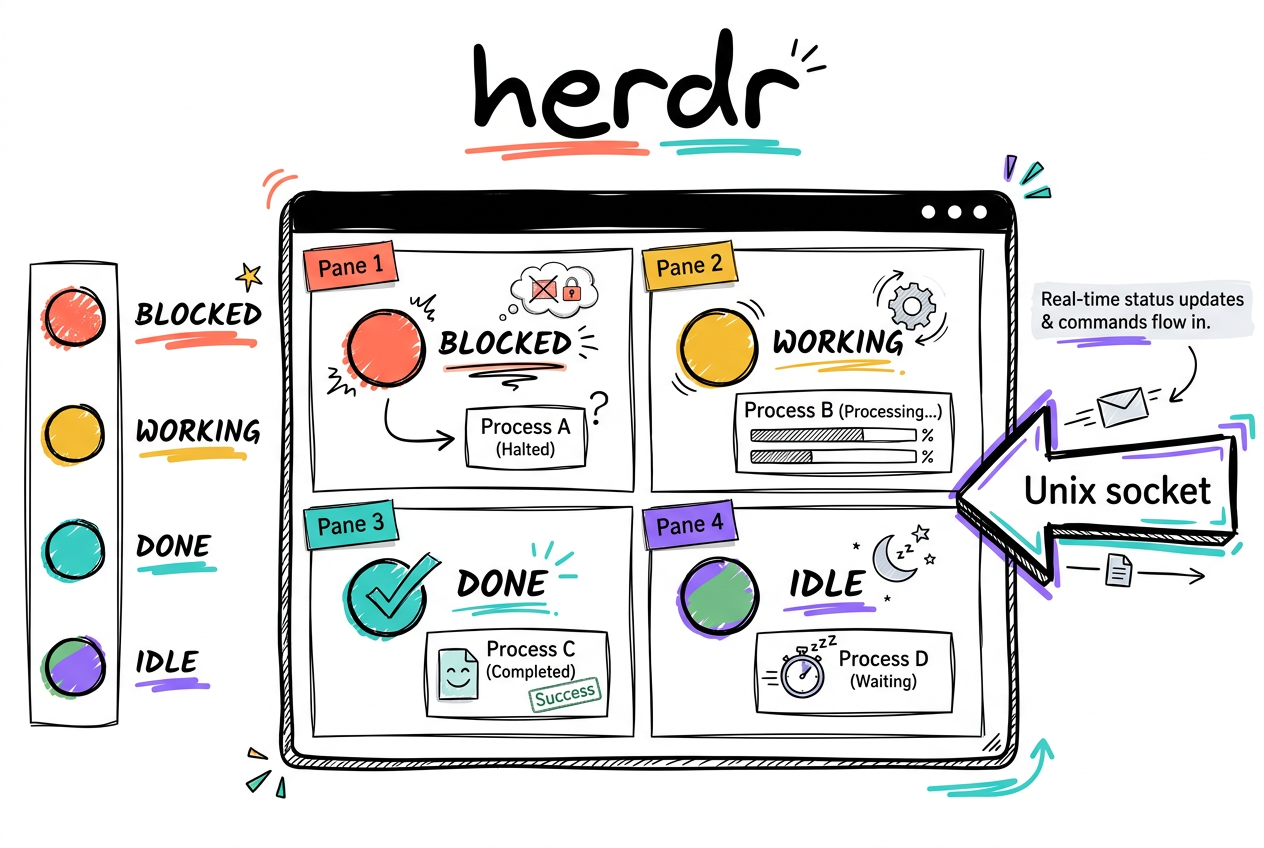
herdr is a terminal workspace manager built for AI coding agents. Think tmux, but it knows what Claude Code, Codex, and Gemini are doing — it watches each agent and tells you which one is working, idle, or blocked. It runs as a background server plus a client, so your sessions, panes, and running agents survive closing the terminal. You attach, detach, and reattach whenever you want, including from another machine.
- A persistent home for every agent you run — they keep running after you close the window.
- Knows agent state: idle / working / blocked, rolled up so you see who needs you.
- Server + client: detach is free, reattach anytime, even over SSH from your phone.
Type `claude` — it lands in herdr
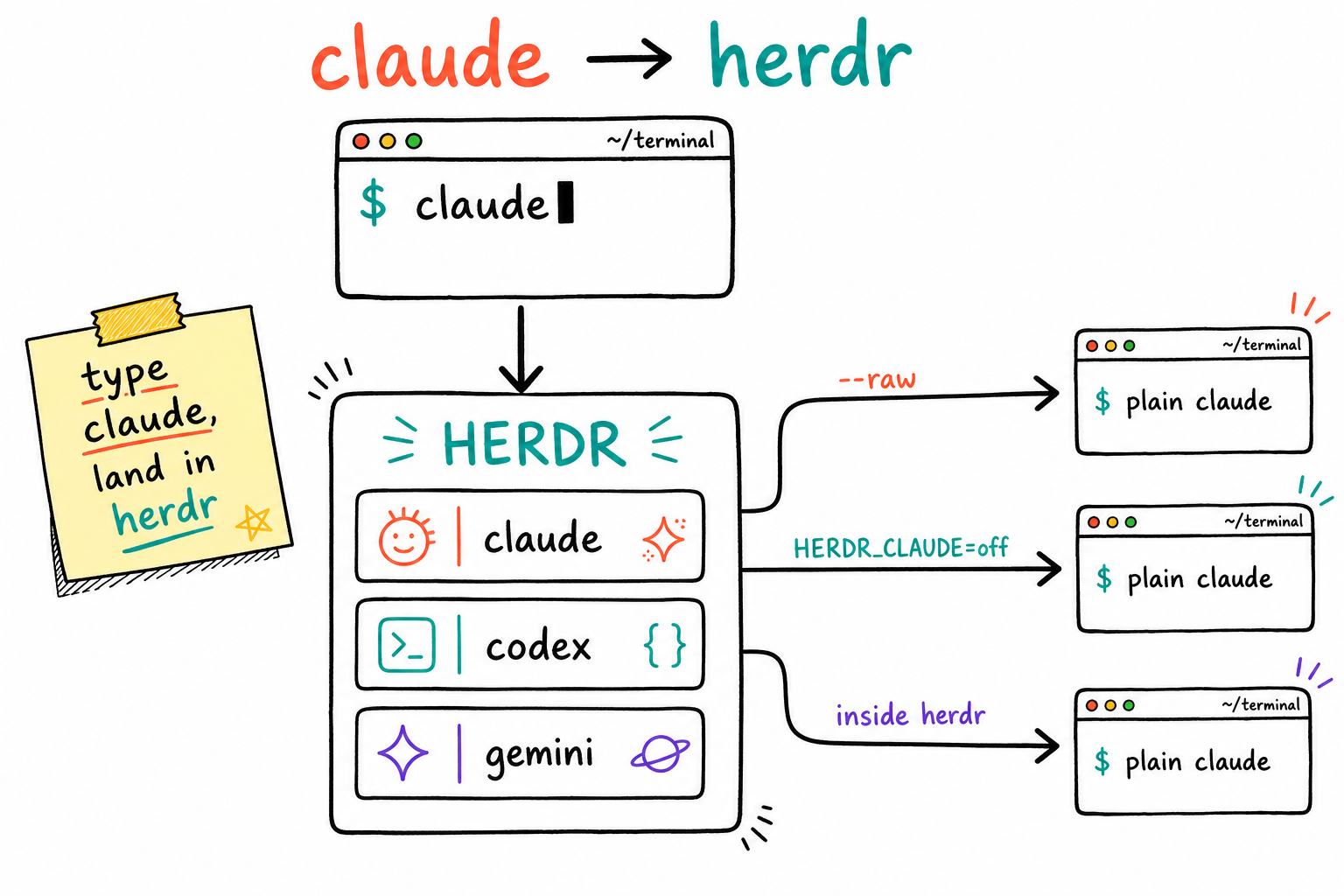
We added a wrapper to your ~/.bashrc so typing `claude` in a normal Git Bash window now spawns Claude Code as a herdr-managed agent in your current folder and drops you straight into the herdr TUI. You don't think about herdr — you just run claude like always, and you get persistence, panes, and agent tracking for free. Every escape hatch is built in so scripts and one-offs never break.
- Interactive `claude` in Git Bash → opens inside herdr, focused on the new agent.
- Already inside a herdr pane? It detects HERDR_PANE_ID and runs plain claude — never nests.
- Scripts are safe: `claude -p ...`, piped input, and non-TTY calls pass straight through.
- Two off-switches: `claude --raw ...` for one-off, or `export HERDR_CLAUDE=off` to disable.
claudeclaude --rawexport HERDR_CLAUDE=off
# now `claude` runs plain again until you reopen the shellIt just works in Git Bash
The installer wrote herdr to the Windows user PATH, and Git Bash inherits that on every new window — so `herdr` is already on your PATH with no .bashrc edit needed. The only Windows things to remember: use forward-slash paths (/d/ClaudeDev, not D:\), and launch the full-screen TUI from a real interactive terminal (MinTTY / Windows Terminal), never from a piped or non-TTY context.
- `herdr` is on PATH in every new Git Bash window — the Windows user PATH carries it.
- Use Unix paths in commands: `--cwd /d/ClaudeDev`, not D:\ClaudeDev.
- Run the bare `herdr` TUI in a real terminal window — not inside a pipe or a script.
- Config + logs live in %APPDATA%\herdr (config.toml, herdr.log, client/server logs).
herdr --version
herdr statusherdr integration install codex
herdr integration statusSession › Workspace › Tab › Pane › Agent
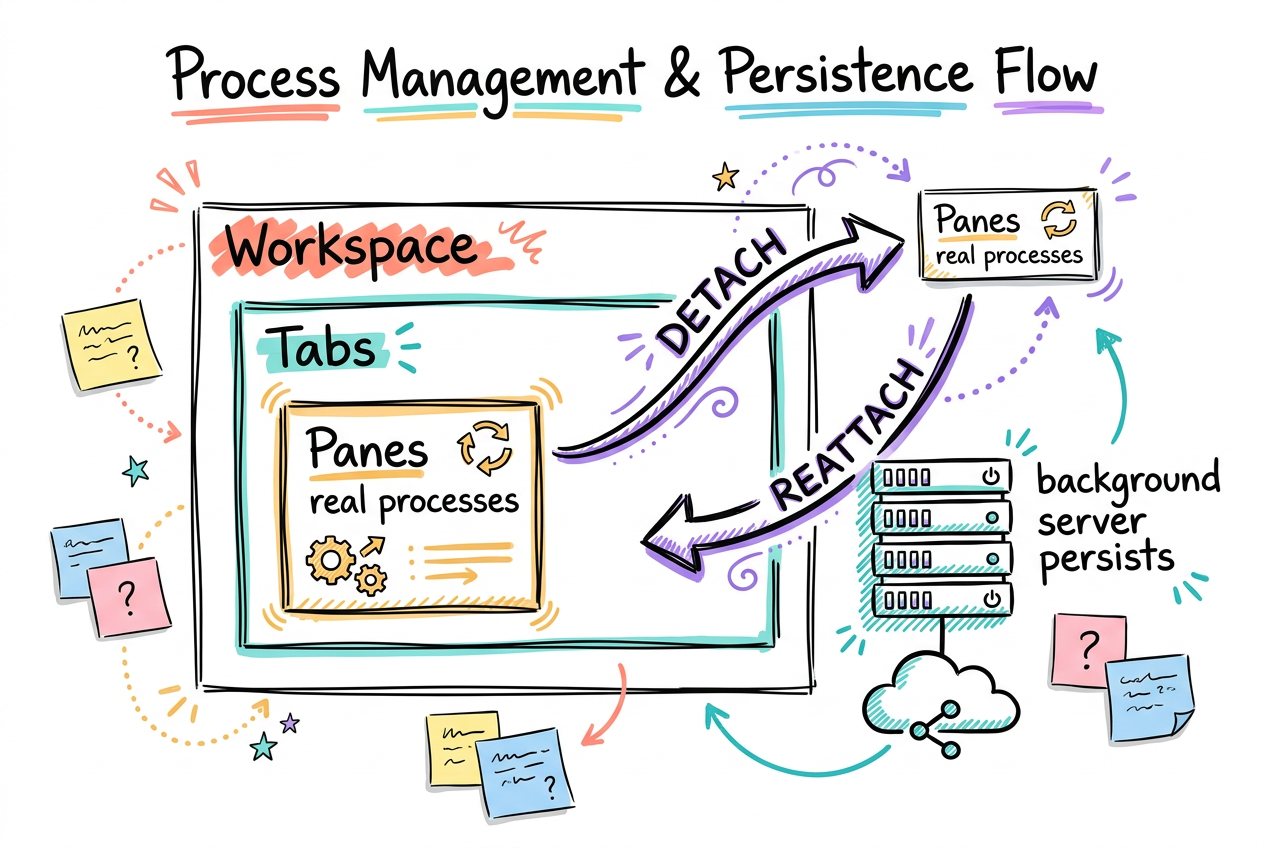
herdr nests five things. A Session is the whole persistent world (you can have named ones). Inside it are Workspaces — usually one per project or worktree. Each workspace holds Tabs, each tab splits into Panes, and a pane can be running an Agent (claude, codex, gemini…) or just a shell. Agent state bubbles up the tree, so a glance at the sidebar tells you which workspace has something waiting on you.
- Session = the durable container. Name them per context: `herdr --session merlino`.
- Workspace = a project/dir. Worktrees become grouped workspaces automatically.
- Tab → Pane → Agent: split your work; each pane can hold its own agent.
- State rolls up: the sidebar shows which workspace is blocked or done.
Launch, look, persist, maintain
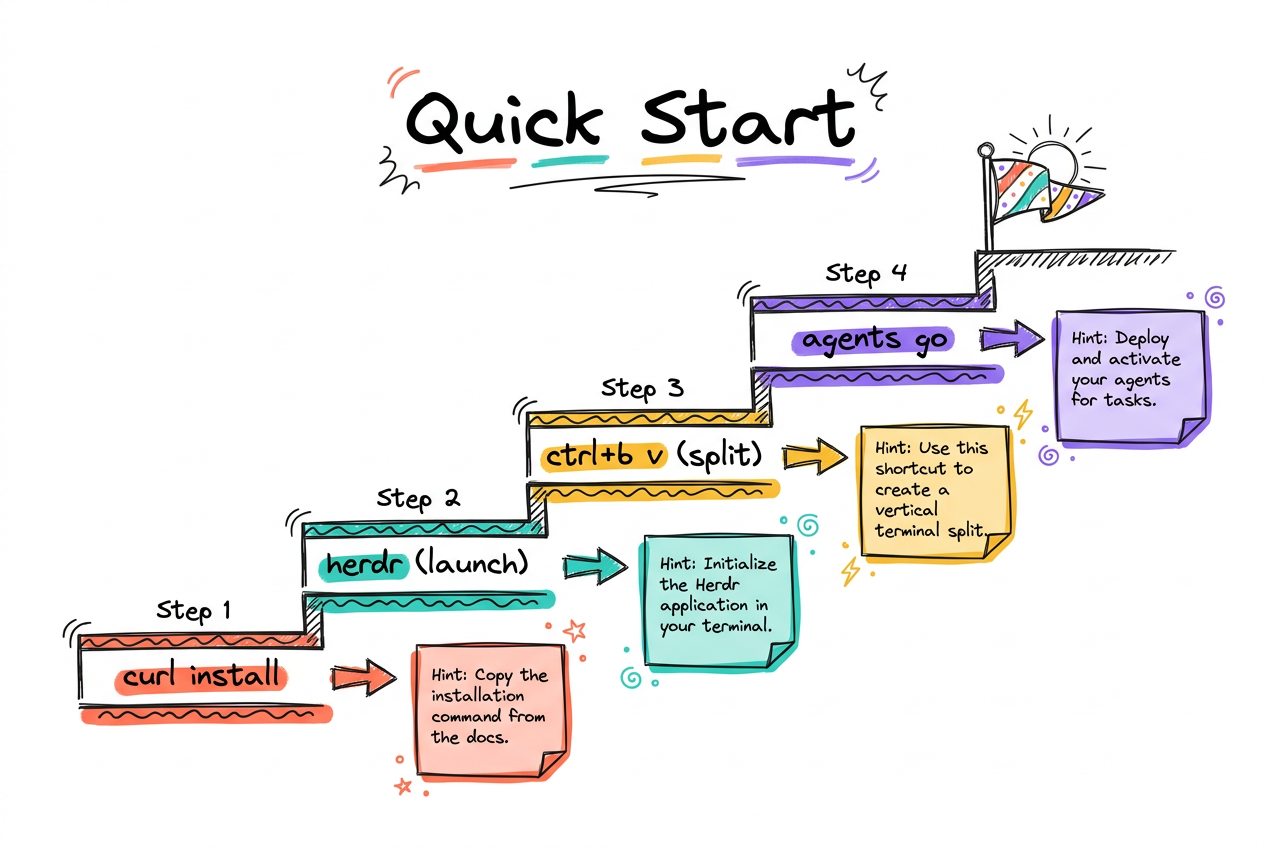
Most days you just type `claude` (now via herdr) and work. But the bare commands are worth knowing: `herdr` attaches the TUI, `herdr status` shows the server, named sessions keep separate worlds alive, and the maintenance commands keep you current on the preview channel. Detaching is free and instant; stopping a session is the deliberate act that actually kills it.
- `herdr` launches/attaches; detach leaves everything running in the background.
- Named sessions: create separate persistent worlds you can reattach by name.
- `herdr update` to upgrade; you're on the `preview` channel (set `stable` to slow down).
- `herdr server stop` is the only thing that actually tears the world down.
herdr                       # launch or attach the persistent TUI
herdr --session merlino     # create/attach a named session
herdr session list
herdr session attach merlino
herdr session stop merlinoherdr workspace create --cwd /d/ClaudeDev --label claudedev --focus
herdr worktree create --branch feature/x --base main --focus
herdr workspace list
herdr tab create --label notesherdr update # upgrade (preview channel)
herdr channel set stable # switch channels
herdr server reload-config # reload config.toml live
herdr server stopSpawn, send, read, wait
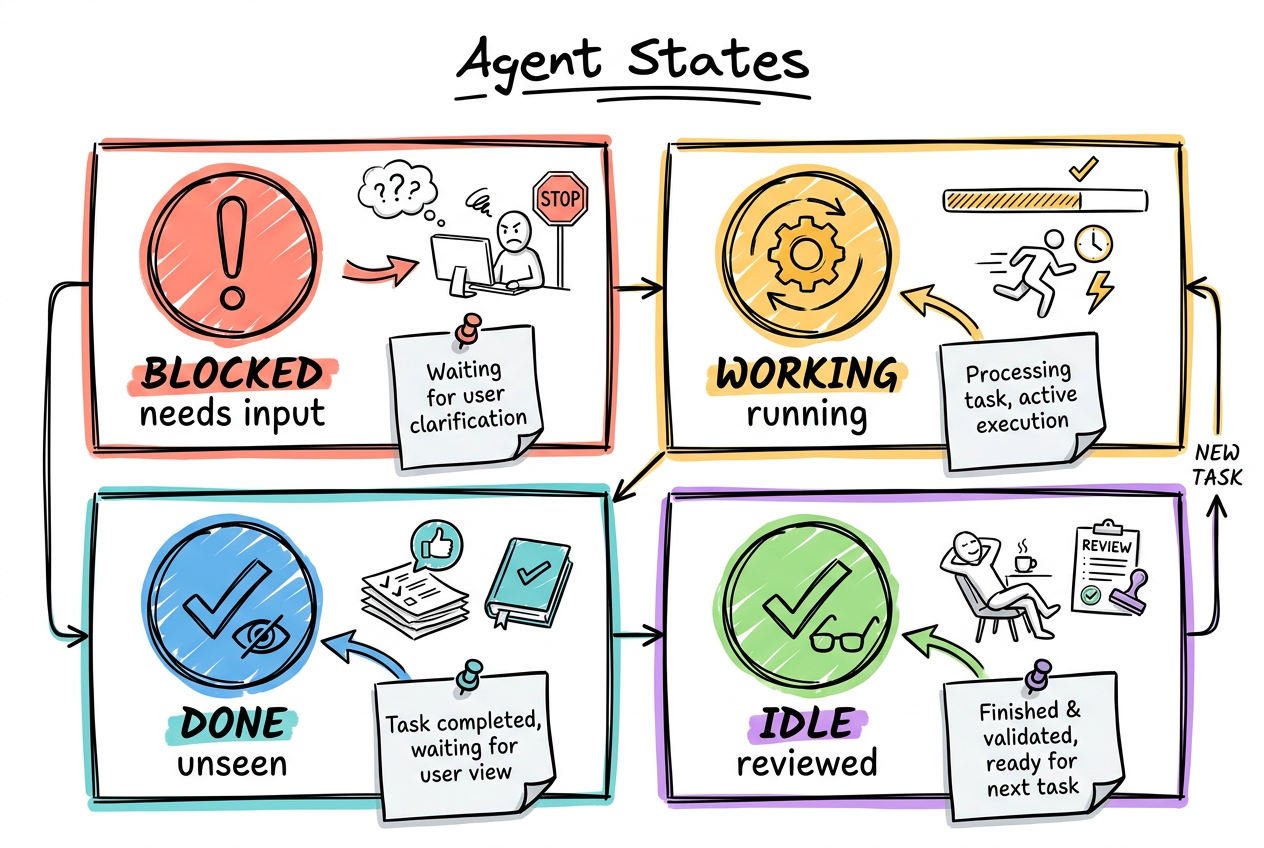
This is what makes herdr more than a multiplexer. Every agent is addressable from the command line through herdr's socket API: start one in a pane, type text into it, read its recent output, and block until it goes idle. That's the whole loop for orchestration — fire an agent, wait for it to finish, read the result, send the next instruction — all scriptable from plain Git Bash.
- `herdr agent start` launches an agent in a pane at a chosen dir.
- `herdr agent send` types text in; `herdr agent read` pulls its output back.
- `herdr agent wait --status idle` blocks until it's done — the orchestration primitive.
- `herdr agent list` shows every agent + state; `agent attach --takeover` jumps in.
herdr agent start claude --cwd /d/ClaudeDev --focus -- claude
herdr agent listherdr agent send <target> "fix the failing test"
herdr agent read <target> --source recent --lines 50
herdr agent wait <target> --status idle --timeout 600000Attach the same world over SSH
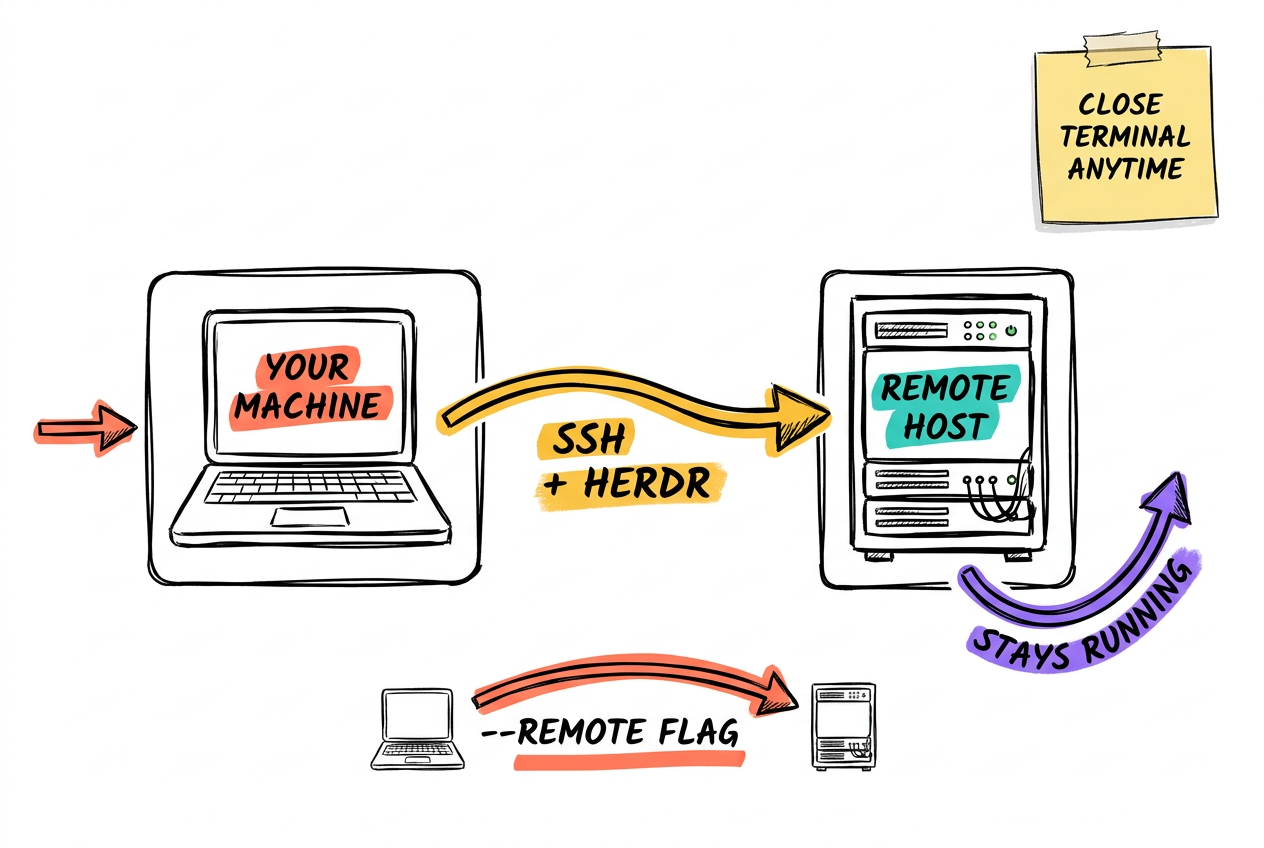
Because herdr is server + client, the server can live on another machine. Point the client at an SSH target and you attach the remote herdr — same sessions, panes, and running agents — from your laptop, the MSI box, or a phone. herdr keeps the bridge alive through NAT/idle timeouts, and you choose whether keybindings come from your local config or the server's.
- `herdr --remote user@host` attaches a remote herdr server.
- Add `--session name` to land directly in a specific remote session.
- Agents you started on Hetzner keep running whether or not you're attached.
- `--remote-keybindings local|server` picks whose keymap wins on attach.
herdr --remote merlino@hetzner --session build
herdr --remote msi --remote-keybindings local